
ABAC Conditions
Conditions are the building blocks of rules. They define the criteria that determine when a rule should apply. A condition can be used in multiple rules.
Note: When using a condition in a rule, you can invert its logic using the "Not" option. See the Rules section for details.
Creating Conditions
- Click the Manage Conditions tab
- Click + New condition
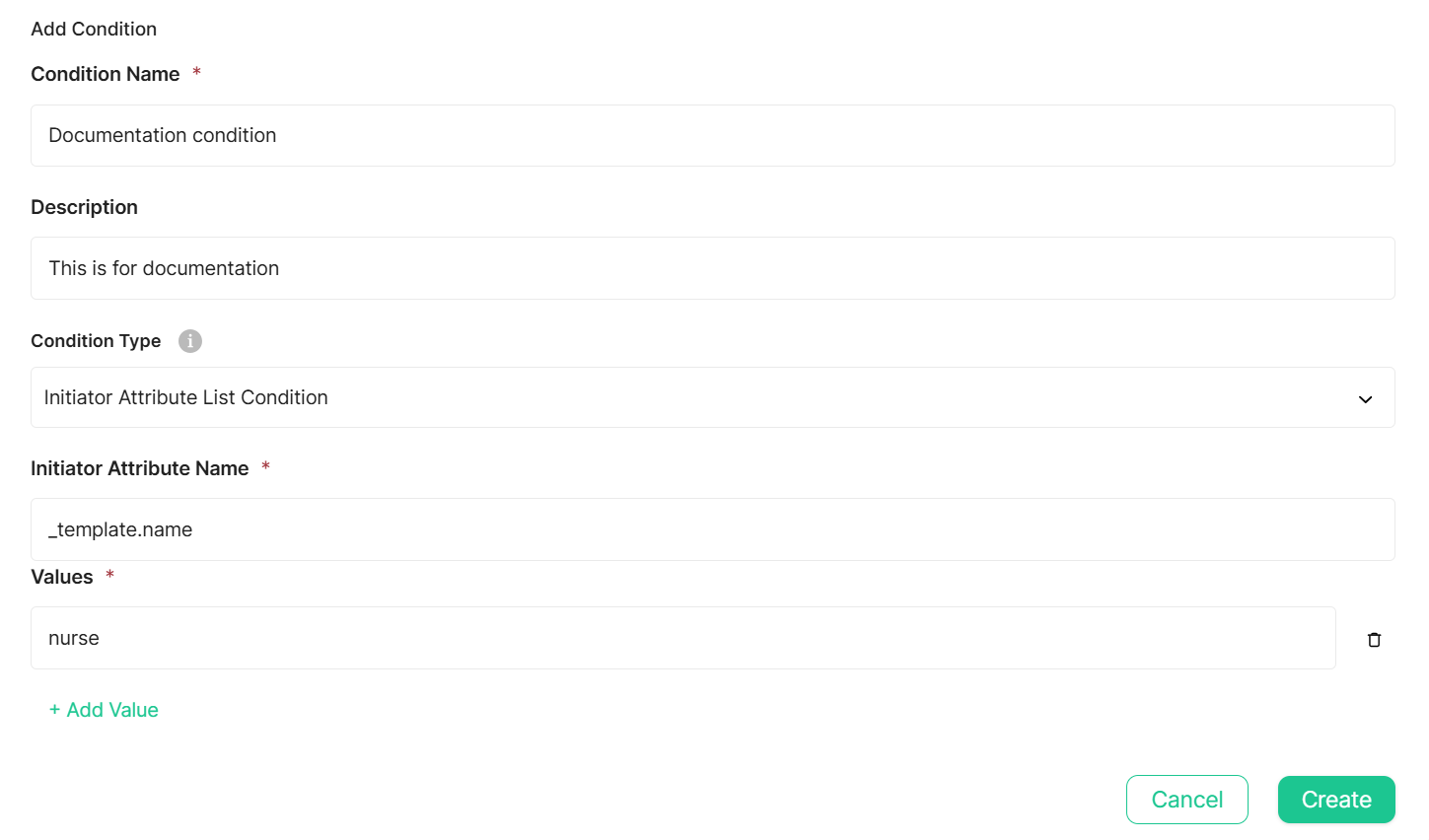
The Add Condition dialog appears with the following fields:
Condition Name (required) - A descriptive name for your condition. Make it clear so you can easily find and reuse it later.
Example: "Is Nurse Caregiver"
Description (optional) - Explain what criteria this condition evaluates. Including a clear description will help you and your team understand it later.
Example: "Checks if the initiator is a caregiver with template name 'nurse'"
Condition Type (required) - Select the condition type to use. Available types:
- Initiator Attribute List Condition - checks if a user's attribute matches specific values.
- Reference Condition - checks whether an initiator attribute equals an attribute found on a related entity, reached by following one or more reference hops from the accessed entity.
Each condition type has its own set of fields, shown below the Condition Type dropdown once selected:
Initiator Attribute List Condition
- Initiator Attribute Name (required) - The attribute of the user making the API call that you want to check. The "initiator" is the user invoking the API.
To see all available attributes, refer to the Get Self API response - any field returned can be used here. The most common attribute to check is_template.name(e.g., "nurse", "doctor", "patient").
For a deeper understanding of initiator data and what information is available when conditions are evaluated, see the Understanding Context section below. - Values (required) - The specific values to match against. If the user's attribute matches any value in this list, the condition is true. Click + Add Value to add each value.
Example: "nurse" (the condition will be true if the user's template name is "nurse")
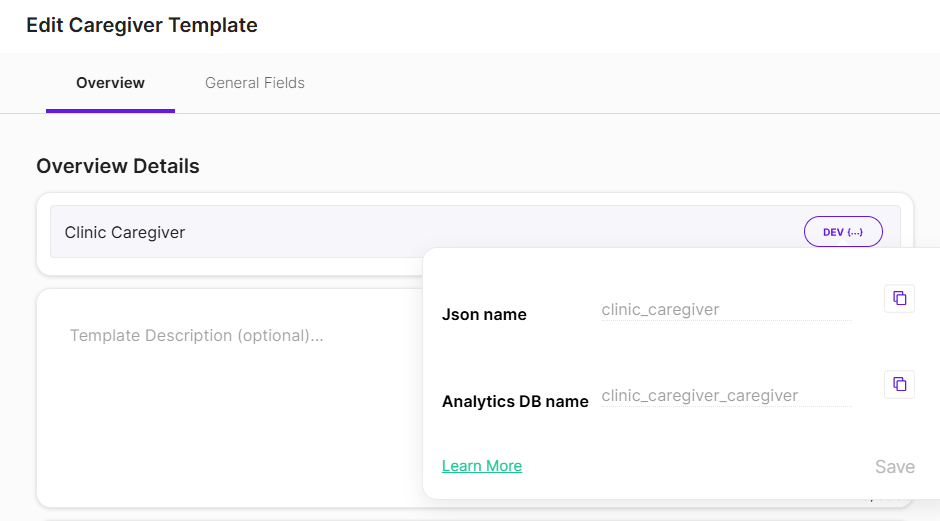
Finding template names: The most common use case is checking _template.name to identify specific user types. Template names are not fixed values. To find a template's exact JSON name, go to Console → Templates → click the template → Overview tab → the Json name field shows the value to use.
Reference Condition
Checks whether an attribute of the initiator equals an attribute on the entity the API call refers to, optionally reached through one or more intermediate entities.
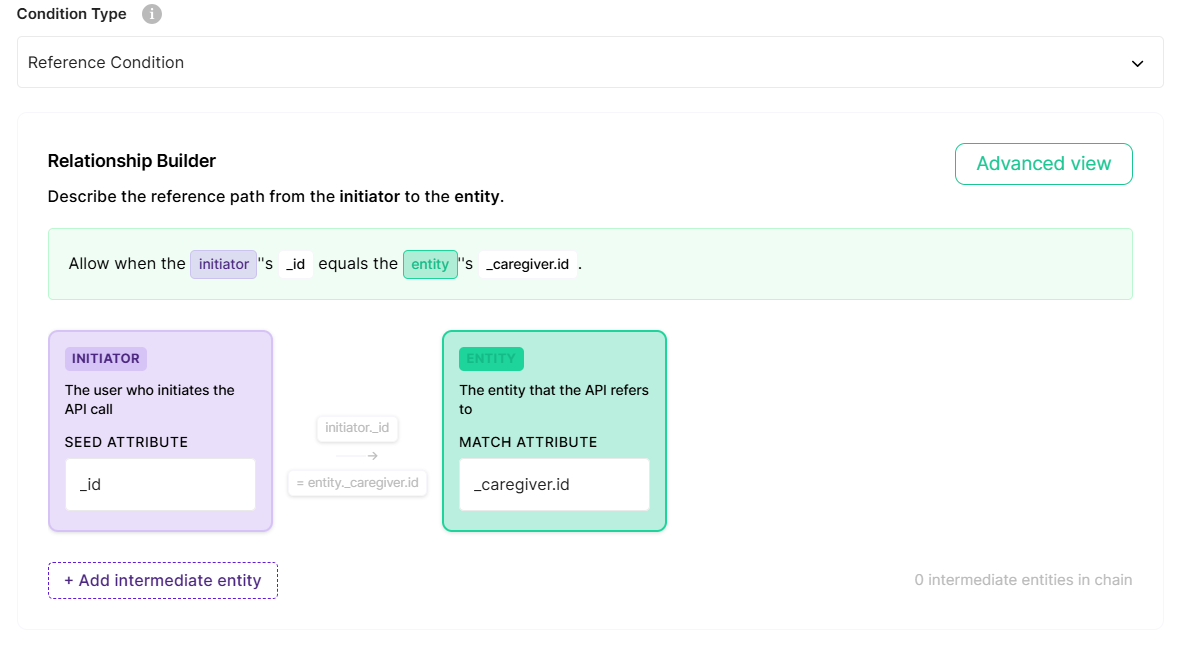
Selecting this type opens the Relationship Builder, which shows the path from Initiator to Entity as connected boxes:
- Initiator - the user who initiates the API call. Set its Seed Attribute - the attribute to start from (e.g.,
_id). - Entity - the entity the API call refers to. Set its Match Attribute - the attribute to compare against at the end of the path.
By default, Initiator and Entity are compared directly (Seed Attribute vs. Match Attribute, no intermediate entities).
In the example below, the condition returns true if the initiator's id equals the entity's caregiver.id. For example, if the initiator is a caregiver, it will return true only if he is the patient's caregiver.
To route the comparison through one or more related entities first, click + Add intermediate entity. Each intermediate entity (hop) has:
- Entity Type (required) - the type of entity at this point in the path.
- Templates (optional) - restrict to specific template(s) of that entity type.
- Search By - the attribute on this entity type that must equal the previous step's value (the Initiator's Seed Attribute for the first hop, or the previous hop's Collect value for later hops).
- Collect - the attribute on the found entity whose value is carried forward — to the next hop's Search By, or, on the last hop, to the Entity's Match Attribute.
In the example below, this checks that the entity's patient.id matches the patient linked to the calling caregiver - so a caregiver only sees devices or records belonging to their own patients.
Note: This condition alone doesn't verify the initiator's role. If you want to restrict this to caregivers specifically, add another condition to check that the initiator is a caregiver.
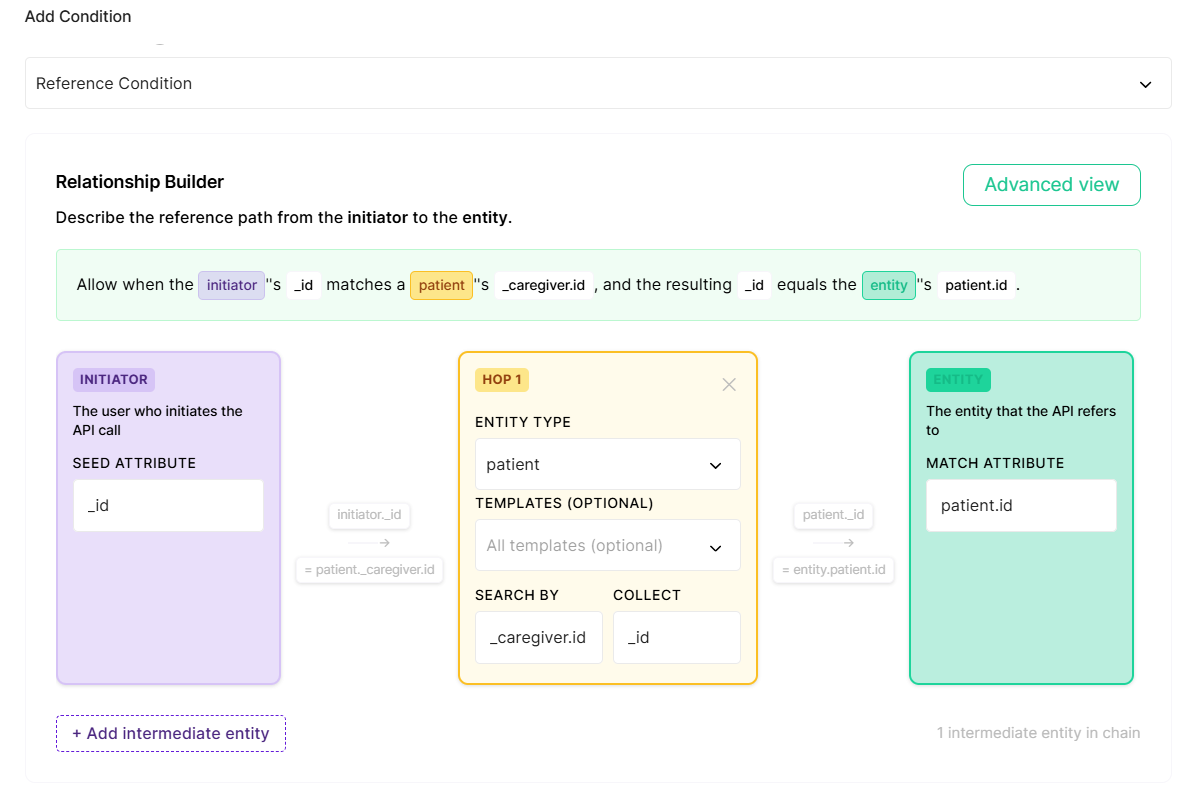
As you fill in the fields, a plain-English summary of the rule builds automatically. For example, a condition with Seed Attribute _id, one hop (Entity Type patient, Search By _caregiver.id, Collect _id), and Match Attribute patient.id reads:
"Allow when the initiator's
_idmatches a patient's_caregiver.id, and the resulting_idequals the entity'spatient.id."
This is how you'd restrict access so a caregiver can only act on entities belonging to their own patients.
Managing Existing Conditions
The Manage Conditions tab shows all available conditions in your environment. Each condition displays:
- Condition Name - The condition's identifier
- Description - What criteria does the condition evaluate?
- Type - The condition type (e.g., Initiator Attribute List Condition, Reference Condition, CompositeCondition)
- Tags:
- Built-in: System condition, cannot be deleted
- Built-in - Modified: System condition that has been edited
- Custom: User-created condition
Important:
- Conditions are reusable. A single condition can be used in multiple rules.
- Before deleting a custom condition, verify it's not in use by any rules. Removing a condition from an active rule means it runs without that check. Rules with no conditions will execute their actions on every API call.
- If you edit a condition that's used in multiple rules, the change will affect all those rules.
Built-in Conditions WarningWhen you attempt to edit a built-in condition, a warning dialog appears asking you to confirm the change.
Built-in conditions are used by system rules that enforce core security requirements. Modifying them can affect multiple built-in rules and impact system security.
Best practice: We strongly recommend against modifying built-in conditions. Instead, create a new custom condition with your desired logic and use it in your custom rules.
Understanding Context
When you create conditions, you need to know what information is available to check. This information is called "context."
Why does this matter?
Conditions work by evaluating data about users or entities in the system. To write effective conditions, you need to understand what data is available and where it comes from.
What data is available?
Initiator data - Information about the user making the API call. This is what you'll use most when creating conditions.
The most common example is checking the user's template name to determine what type of user is making the request (e.g., is this user a nurse or a doctor?).
All initiator attributes come from the Get Self API. This API returns information about the logged-in user, and any field in that response can be used in your conditions.
Entity data - Information about the entity being accessed (like a specific patient, device, or organization). Entity data may not always be available. For example, when searching entities, there is no single entity whose data can be used for evaluation. When available, entity data comes from the relevant "Get By ID" API for that entity type (e.g., Get Caregiver By ID for caregiver entities).
Note: Most conditions work with initiator data. Reference Condition is the exception; it evaluates attributes on a related entity, reached from the accessed entity.
Updated 3 months ago