
ABAC Rules
Rules combine conditions and actions to enforce access control policies on specific API endpoints.
Creating Rules
- Click the Manage Rules tab
- Click + New rule
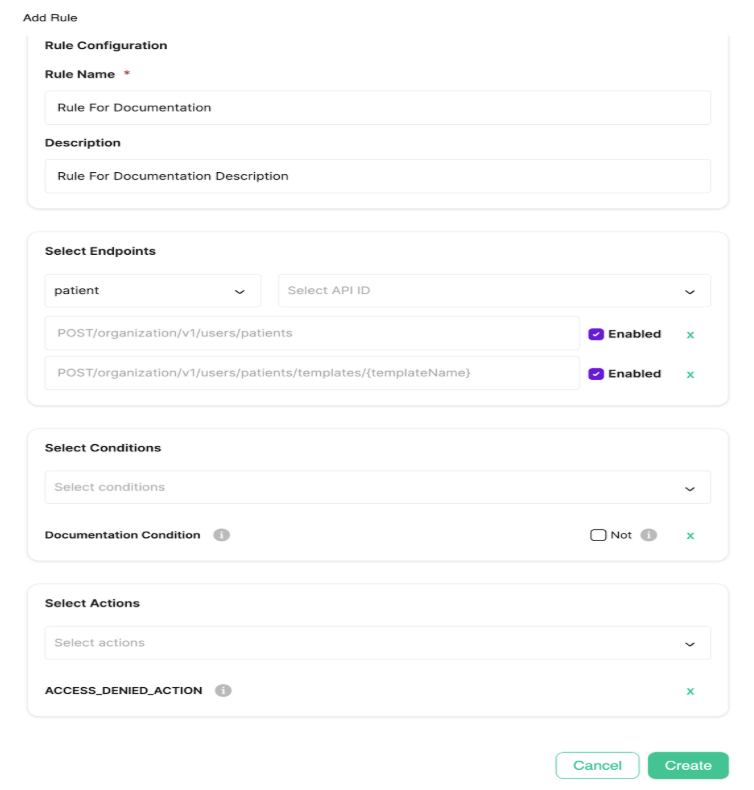
The Add Rule dialog appears with several sections:
Rule Configuration
Rule Name (required) - A clear name describing what this rule does.
Example: "Block Nurses from Creating Patients"
Description (optional) - Explain the rule's purpose. Including a clear description will help you and your team understand it later.
Example: "Prevents nurse caregivers from creating new patients"
Select Endpoints
This is where you specify which API operations this rule applies to.
Select entity type - Choose the type of entity the API operates on (patient, caregiver, organization, etc).
Example: Select "patient"
Select API ID - After choosing an entity type, this dropdown shows all available APIs for that entity. You can add multiple endpoints to one rule.
Note: The dropdown remains open after you select an API, allowing you to quickly add multiple endpoints. Selected APIs are added to your rule and removed from the dropdown list. Click outside the dropdown or press Escape to close it when you're finished adding endpoints.
Example: For patient creation, add both:
POST/organization/v1/users/patientsPOST/organization/v1/users/patients/templates/{templateName}
Important notes about endpoints:
- Multiple endpoints per operation: Some operations have multiple API endpoints (like patient creation above). Add all relevant endpoints to ensure complete coverage.
- Multiple endpoint versions: Some APIs have multiple versions (e.g., Generic Entity v1 vs v3). Ensure you attach rules to the correct API version you're using.
- Generic Entity v3 endpoints: Include
{templateName}in the URL. You can either leave it as{templateName}to apply the rule to all generic entity templates, or replace it with a specific template name to target only that template.
Enabling/Disabling Endpoints
Each endpoint you add has an Enabled checkbox. You can disable specific endpoints without removing them from the rule. This is useful for:
- Testing rules on a subset of endpoints before enabling all
- Temporarily lifting restrictions on specific endpoints
- Troubleshooting access issues
Select Conditions
Choose which condition(s) must be true for this rule to execute its actions. Any condition you've created can be selected here.
Example: Select "Is Nurse Caregiver" (the condition we created earlier)
You can add multiple conditions to a rule. All conditions must be true for the rule's actions to execute.
Using the "Not" Checkbox
Each condition has a Not checkbox. When enabled, it inverts the condition's result. This is useful when you want to allow only certain users rather than block them.
Example: To allow only doctors to access an endpoint:
- Create a condition "Is Doctor" that checks if
_template.nameequals "doctor" - Add this condition to your rule and check the Not checkbox
- Add ACCESS_DENIED_ACTION
- Result: Everyone except doctors will be denied access (the condition "is doctor" becomes "is NOT doctor")
Select Actions
Choose what happens when all conditions are true. Any action you've created can be selected here
Example: Select "ACCESS_DENIED_ACTION"
ACCESS_DENIED_ACTION blocks the API request and prevents the operation from executing. When a nurse caregiver attempts to create a patient, the request will be denied.
Click Create to save your rule.
Result: After clicking create, your rule will be active. When any user with the "nurse" template tries to create a patient through either of the patient creation endpoints, the system will deny access.
Managing Existing Rules
The Manage Rules tab shows all rules in your environment. Each rule displays:
- Rule Name and Description
- Conditions - Number of conditions
- Actions - Number of actions
- API Endpoints - Number of endpoints
- Tags:
- Built-in: System rule, cannot be deleted
- Built-in - Modified: System rule that has been edited
- Custom: User-created rule
Click the pencil icon next to any rule to edit it.
Built-in Rules WarningWhen you attempt to edit a built-in rule, a warning dialog appears asking you to confirm the change.
Built-in rules enforce core security requirements. Exercise caution when modifying them.
Best practice: We strongly recommend against modifying built-in rules. Instead, disable them for specific endpoints and create new custom rules with your desired logic.
Updated 3 months ago