
Over-the-Air (OTA) Update Module
The OTA Update Module enables secure firmware and software updates to connected medical devices. Manufacturers can deploy updates to device groups, track installation status, and ensure devices run approved firmware/software versions.
Overview
The BioT system manages Firmware Over-the-Air (FOTA) and Software Over-the-Air (SOTA) updates through software groups and software versions. This architecture allows manufacturers to control which devices receive specific updates based on organizational policies, regulatory approvals, or deployment stages.
Key capabilities:
- Group devices by update policy or organizational unit
- Upload and manage multiple software versions
- Assign approved versions to specific device groups or a specific device
- Notifying the device when updates are available
- Track installation status per device
- Secure download URLs for update packages
The OTA Update Module is enabled per customer environment and requires deployment by BioT. To request this capability, contact BioT Customer Support at [email protected].
Glossary
| Term | Definition |
|---|---|
| Software Group Template | A template defined in the console is used to create software groups that can be assigned to devices. |
| Software Version Template | A template that represents a software version containing the software file and relevant metadata. |
Software Groups
Software groups represent collections of devices with similar update requirements. For example, different hospitals may have varying policies for receiving software updates. In such cases, each hospital is assigned its own software group.
Each software group can be assigned a specific software version that meets its update criteria. For instance, version x.y.z may be approved for Hospital X but not for Hospital Y. In this case, x.y.z is assigned to the Hospital X group, and only devices in that group will receive the update.
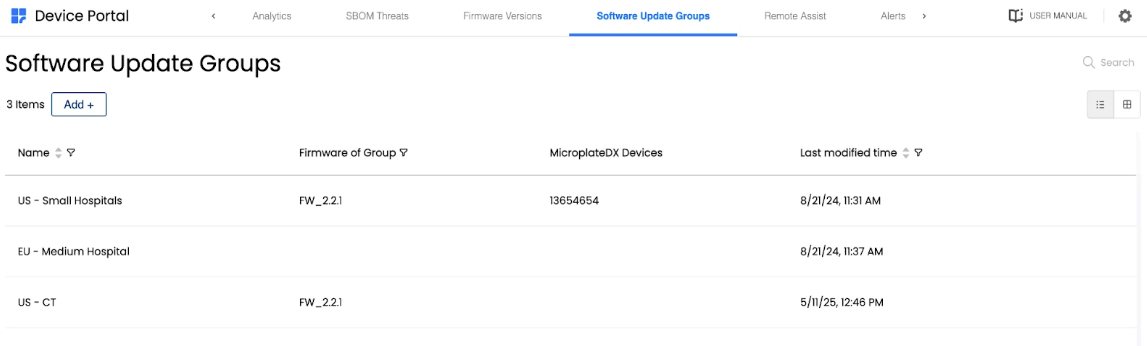
Software Update Groups list showing groups for different hospital deployments with assigned firmware versions
Software Versions
Each software version is encapsulated as an entity containing all relevant details, including:
- The software binary file
- Version name
- Metadata (optional and customizable)
- Vulnerability severity and date tracking
- Additional fields can be added to a software version
A software version can be associated with one or more software groups. Associating a version with a group means all devices in that group are expected to upgrade to that version.
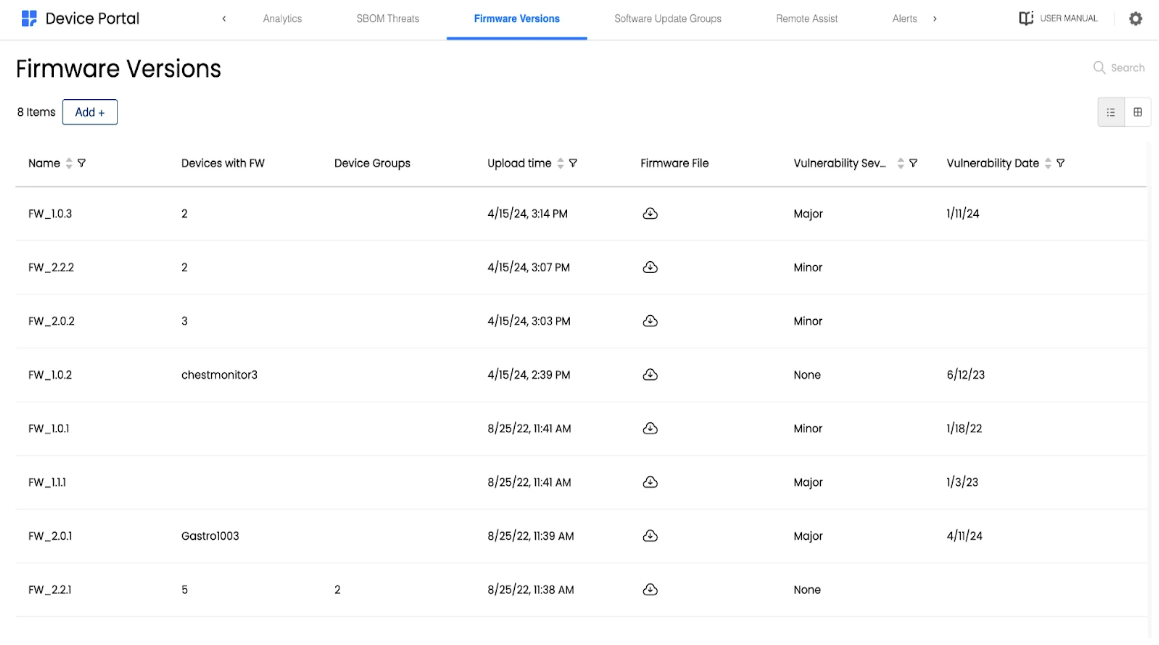
Firmware Versions list showing version details, device counts, upload times, and vulnerability tracking
Software Upgrade Flow
1. Group and Device Setup
The manufacturer's operator creates software groups and assigns devices to the appropriate groups.
2. Version Assignment
As new software versions become available, they are assigned to the relevant software groups by the operator.
A version can also be assigned to a specific device.
3. Update Notification
Whenever a device's group changes or when a new software version is assigned to its group, the device receives a notification that an update is available. If the device is offline, the notification is delivered once it comes back online.
4. Update Process
Upon receiving the notification, the device can download and install the update. Additionally, devices may poll the cloud to check for updates. The manufacturer decides whether to use push notifications, polling, or both.
Technical Flow
New version notifications are delivered to the device using the remote configuration feature. See here for more details about remote configuration.
The following diagram illustrates the technical implementation of the software update process:
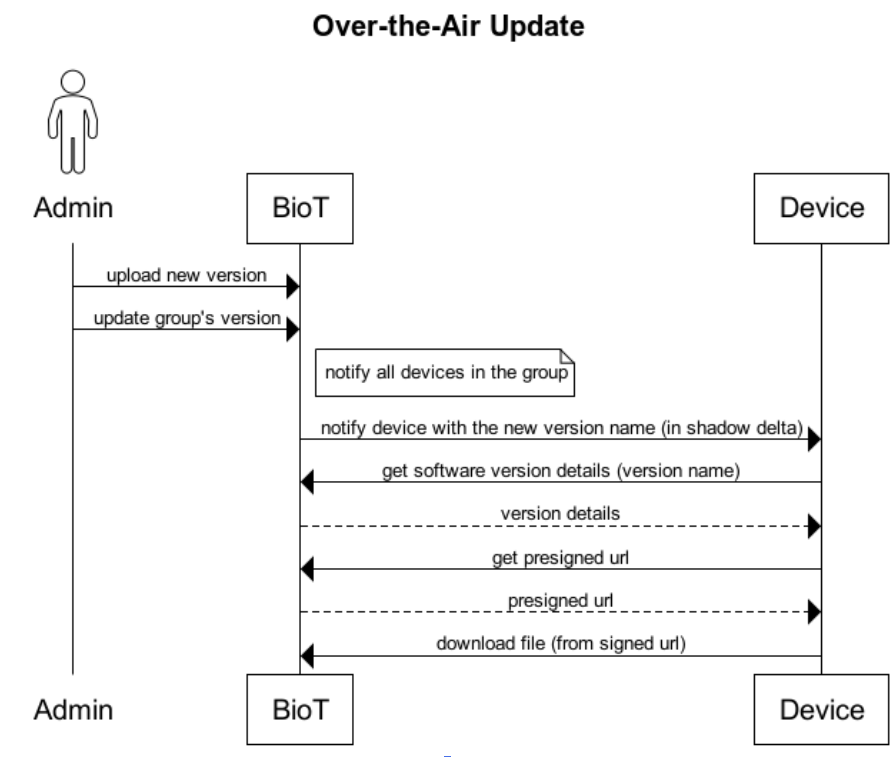
Firmware Update sequence diagram showing the interaction between Manufacturer User, Device, and BioT Cloud
Step-by-step process:
-
Version Creation and Assignment: The manufacturer user uploads a new software version via the UI, creating the version and associating it with the relevant software update groups.
-
Shadow Update: The BioT system updates the device's shadow to indicate that a new software version is available (device version name in shadow delta).
-
Device Synchronization: When the device connects, it receives the updated shadow and retrieves the software version details from the Software Version entity.
-
Download Request: The device requests a presigned URL and receives a secure, time-limited link to fetch the update.
-
Download and Installation: The device downloads the file from the signed URL and installs the new software version.
-
Installation Confirmation: Once installation is complete, the BioT system marks the version as installed for that specific device. The device will no longer receive update notifications for the same version.
Data Model
The OTA module uses the following data model components:
| Component | Purpose |
|---|---|
| Software Group | Group devices by update policy. Contains group name and reference to the current approved version. |
| Software Version | Stores version details, including binary file, version name, vulnerability severity, and custom metadata. |
| Device Shadow | Tracks pending update status and the current installed version per device. See here for more info. |
Additional attributes can be added to any of the above templates using the no-code console interface. There are no limitations on the types or number of attributes that can be configured.
FAQ
- Multiple software version types can be supported, such as device firmware and application software. In addition, different versions can be defined for different device types, for example, device firmware and gateway software.
- For devices without direct internet access, an intermediary gateway, such as a mobile application or a laptop, can be used to download the new version and transfer it to the offline device.
Best Practices
- Use staging groups to test updates on a subset of devices before broad deployment
- Include version metadata such as release notes, minimum hardware requirements, and rollback instructions
- Track vulnerability severity to prioritize security-critical updates
- Monitor installation confirmations to identify devices that fail to complete updates.
- Implement device-side validation to verify download integrity before installation
- Plan for offline devices by ensuring notifications persist until the device reconnects
Updated 5 months ago